


If every ClickUp task opens with a wall of fields, the problem is probably not your team’s discipline. The task is asking for information that belongs to other kinds of work. A deliverable, support request, meeting and milestone can share a List without sharing the same questions.
Prefer to watch? The full walkthrough is on YouTube:
What are ClickUp custom fields by task type?
A custom field can be assigned to a location or to one or more task types, but not to a location and a task type at the same time. A location field applies to tasks in a Space, Folder, Subfolder or List; a task type field applies to tasks of the selected type wherever they live in the workspace. You can assign fields from three places: the task’s Fields section, the Custom Field Manager or the Fields sidebar.
On the task, ClickUp groups the fields by where they come from. Fields from the task type sit together, followed by fields from the List and other locations. That grouping matters because it gives you a quick way to audit the setup. You can see which questions are shared context and which belong to the work being done.
Location fields vs task type fields: the rule that decides everything
Before you move a single field, ask this:
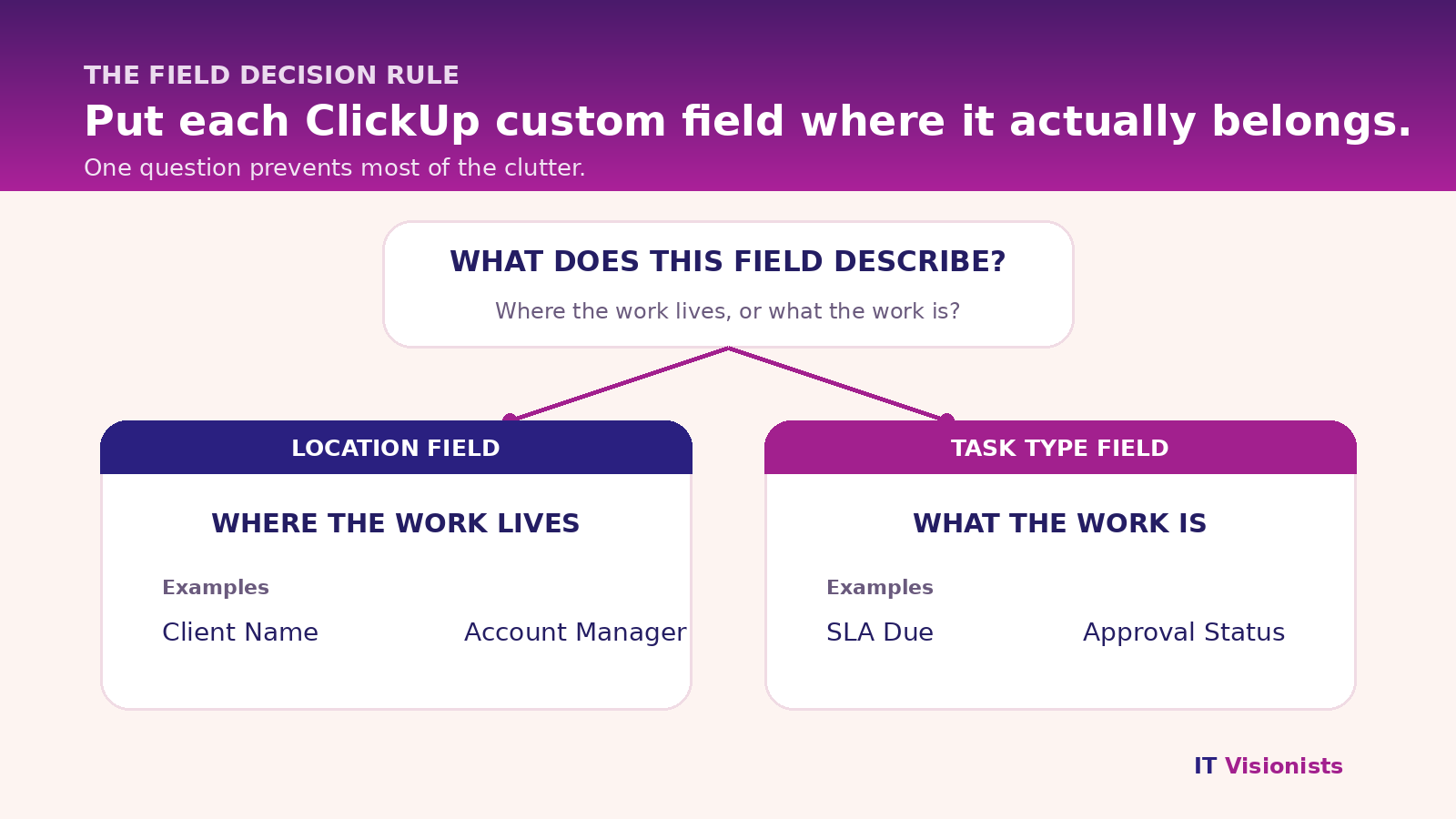
Does this field describe where the work lives, or what kind of thing it is?
If it describes where the work lives, keep it as a location field. Client Name and Account Manager are shared client context, so they can remain available across the client’s work.
If it describes what the work is, make it a task type field. Scope Area and Approval Status describe a Deliverable. SLA Due and Resolution describe a Support Request. Target Date and Sign-off Required describe a Milestone.
This is a switch, not a tick box. A task type field can be assigned to several task types, but it cannot also be assigned to a location. If two types need the same field, assign it to both rather than duplicating it as a location field.
How to set up ClickUp custom fields by task type
The cleanest setup starts with the types of work you already have. Do not invent task types just to make the structure look sophisticated.
For the wider workspace decisions around this setup, see the complete ClickUp setup guide for service businesses.
- Create the task types. Open Workspace settings, go to Task Types and create the types your List genuinely needs. Keep names short enough to scan quickly. A practical service-business example is Deliverable, Support Request, Meeting and Milestone.
- Create a task for each type and add its fields. In an empty List, create one task for each type and set each task’s type before opening it. Open a task of each type, scroll to Fields, select the plus icon and choose Create a field. Choose On this Task Type when the field describes that type of work. Choose On this List when it describes shared location context. Add only the fields someone needs to complete or review that type of task. Start with the smallest set that supports the process.
- Set a default task type. In the List settings, choose a default task type so new tasks arrive with the right starting point. This removes one piece of memory work from the team.
- Add the Task Type column to the List view. Group or filter the view by type. This makes misclassified tasks easier to spot and gives you a practical way to work through older tasks in batches.
Example: one client List with four task types
A single client project List might contain all of these records:
- Deliverable: Scope Area, Format, Reviewer and Approval Status.
- Support Request: Priority, Category, SLA Due and Resolution.
- Meeting: Meeting Type, Attendees, Meeting Platform and Client Present?
- Milestone: Target Date, Sign-off Required and Percent Complete.
Client Name and Account Manager can remain location fields because they describe the client context shared by every record. The type-specific fields only appear where they help.
The List still holds the complete client picture, but each task asks a smaller and more relevant set of questions. People are more likely to fill in four fields that apply than twenty fields where half are irrelevant.
If this List supports client onboarding, see our ClickUp client onboarding system for the wider process.
Can parent tasks and subtasks use different task types?
Yes. A parent task and its subtasks can have different types.
For example, make the parent a Milestone with Target Date, Sign-off Required and Percent Complete. Make its subtasks Deliverables with Scope Area, Format, Reviewer and Approval Status. One milestone can then contain several deliverables without forcing milestone fields onto every subtask.
There is one practical limitation: from the parent task view, you cannot see the subtasks’ own type fields. Open the subtask directly, or use a List view with the relevant columns added. The data is still there. It is simply attached to the subtask’s type rather than the parent’s.
What happens when you convert an existing field?
Converting a location field into a task type field is a move, not a copy.
ClickUp warns you and shows the number of affected tasks. Read that number before confirming. The data is not deleted, but the field disappears from tasks that do not use the selected type. That can look like lost data if you do not know what changed.
If the result is wrong, you have three ways back:
- Set the affected tasks to the correct type.
- Add the field to the other relevant task types.
- Switch the field back to a location field.
Do this conversion deliberately. Before confirming, compare the affected-task count in ClickUp’s warning with the tasks that should keep using the field. If the counts do not match, cancel and correct the task types or add the field to each relevant type before converting.
Four traps to check before you roll this out
Shared templates can bring back the clutter. Task templates can pull in all of the fields available to a task type. A shared template used across several types may arrive with more fields than the person needs. Test the template with each type before making it the default.
The bulk action toolbar may feel worse at first. When you select several tasks, the field menu can contain a long list of fields that do not apply to every selected type. Use the search box and type the field name instead of scrolling.
As of October 2026, some field types are not supported. Button, Files, Formula, List-to-List Relationship and Tasks fields are the main gaps to check before you plan a full migration. Formula is the painful one if you rely on it for reporting, so confirm your fallback before changing existing fields.
Scoping fields does not clean up abandoned fields. If a workspace has forty fields because nobody has ever retired one, task types only hide the mess more neatly. Remove or consolidate fields that no one fills in before you build the new sets.
Use filtered views to finish the job
Create one List view per task type. Filter each view to the relevant type, then show the columns that matter for that work. A Deliverables view can focus on Scope Area, Reviewer and Approval Status. A Milestones view can focus on Target Date, Sign-off Required and Percent Complete.
A Deliverables view shows what is still waiting for approval before an unapproved deliverable reaches a client. A Milestones view makes a slipping date easier to catch before it becomes a missed commitment.
When not to use task types in ClickUp
If a List holds one kind of thing, skip this setup. A List of blog posts does not need task types if every task needs the same fields. A single-purpose List is already doing the filtering for you.
For a wider view of ClickUp operations in consulting firms, see ClickUp for consulting firms.
Also keep genuinely shared context as location fields. Do not move every field to a task type just because the option exists. More structure is not automatically better structure.
Task types fix which fields each task asks for. If people still leave those fields blank, the problem is upstream in how the work is set up.
If your team has fields nobody fills in, run the free Business Chaos Check. It will help you find the upstream process problem, not just tidy the symptoms.