


When a lead is won, your team should be starting client work, not building folders and retyping form answers. Manual handoffs slow the first response and create a simple risk: the folder is missing or a detail from the intake form is copied incorrectly.
Prefer to watch? The full walkthrough is on YouTube:
What can ClickUp Google Drive automation handle?
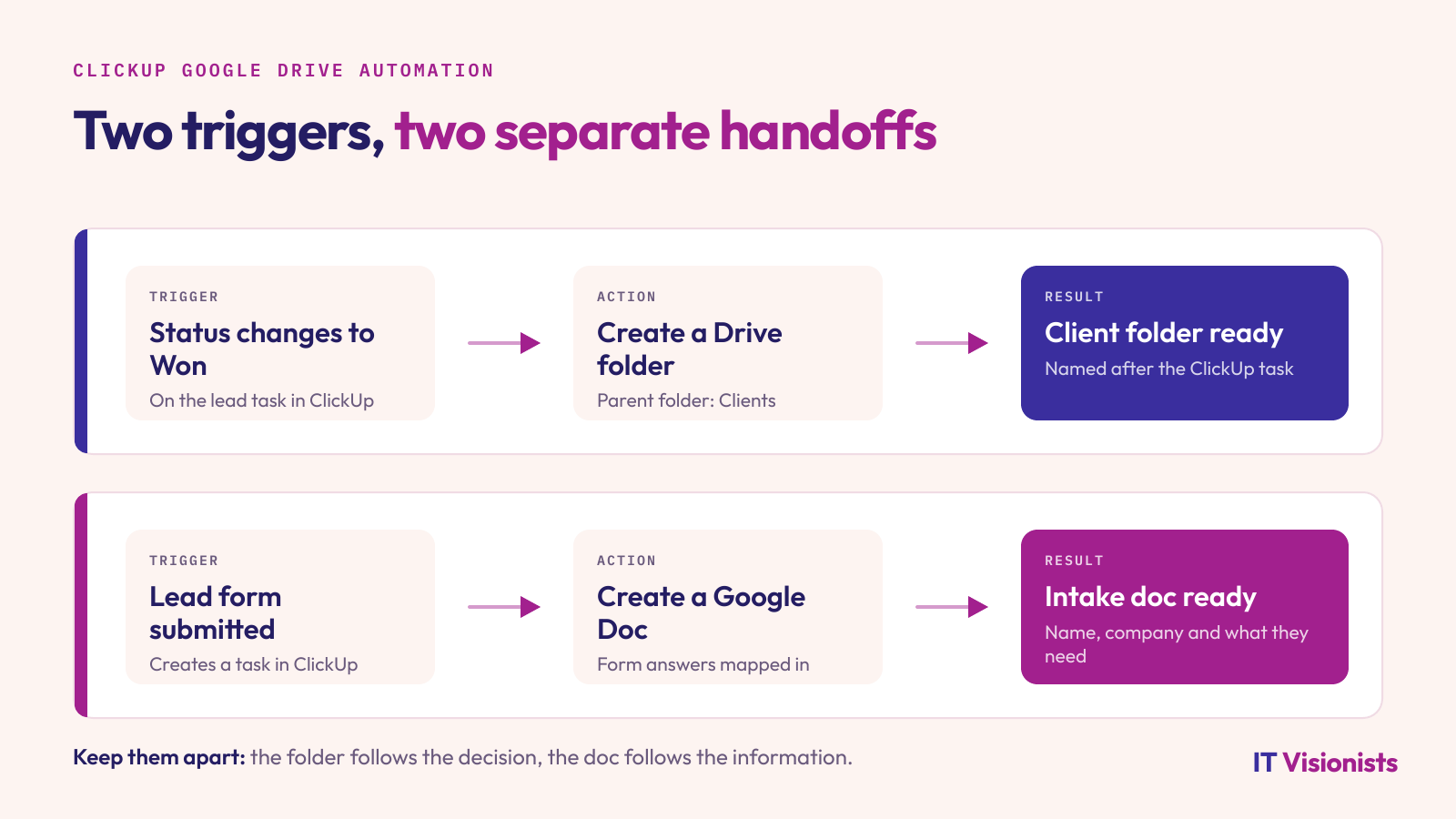
The workflow described here covers two separate handoffs. The first starts when a lead task changes to Won (or the status your team uses for the same decision). ClickUp creates a Google Drive folder under Clients, using the task name as the folder name. If the task is named after the client, the folder is too.
The second starts when someone submits a lead form. The form submission creates a task in ClickUp, then an automation creates a Google Doc with the form details mapped into its content. The example fields are the person’s name, company and what they need.
These are separate triggers, not one long chain. One responds to a decision in the lead process. The other responds to information arriving through a form. That distinction matters: a folder should follow the status that means the lead is won while the document should follow the form submission that supplies its contents.
When should you use a native ClickUp Google Drive automation?
Use this pattern when the event is clear and the output is predictable: a lead reaches a defined status and needs a named folder, or a form arrives and its answers need to be put into a document. The decision rule is simple: automate the handoff that has a reliable starting event and a specific destination.
This does not mean every process involving ClickUp and Google Drive fits these two setups. The script only describes folder creation from a status change and document creation from form data. If your process needs additional branches or other tools, treat that as a separate design question. For another perspective on cross-tool workflows, see 7 ClickUp Automations With Make.com (Real Examples).
Prepare your lead workflow before building
Start with the records and data the automations will use. This prevents a technically successful handoff from creating a folder with the wrong name or a document that leaves out the information your team needs.
- Create or choose a lead list. If you are starting from an empty workspace, create a ClickUp List for leads and add one task per lead. If a lead list already exists, use it instead of creating a second place to track the same work.
- Choose the status that means the lead is won. Use Won, or the equivalent status in your process. Make sure the team uses it only when the lead has actually been won. The automation will follow the status change you select, not the conversation your team had about the lead.
- Choose the destination folder. Confirm the Google Drive Clients folder is the parent location where new client folders should sit. Decide on the client naming convention before mapping the task name to the folder name.
- List the form details the document needs. Start with the example fields from the script: name, company and what the person needs. If your intake form already exists, check that those answers are collected. If it does not, create the form and add the fields your team needs to act on the enquiry.
A short data check here is cheaper than asking a new client to resend information or searching Drive for a folder that was named after an internal task label.
Create a Google Drive folder when a lead is won
- Set the trigger. Use the event where a task’s status changes to Won, or to the equivalent status you chose. This ties folder creation to the point when the lead has been accepted, rather than to an earlier enquiry.
- Choose the folder action. Set the action to create a folder in Google Drive and place it under Clients. Check the parent location carefully before using the automation on real leads.
- Map the folder name. Use the ClickUp task name as the folder name. This is the important link between the lead record and the files your team will create. A generic or abbreviated task name will produce a generic or abbreviated folder name.
- Test the handoff in ClickUp. Create a test lead task with a recognisable name, then change its status to Won. Open Google Drive and check that a folder appears under Clients with the same name. If it lands elsewhere or has the wrong name, correct the destination or mapping before relying on it.
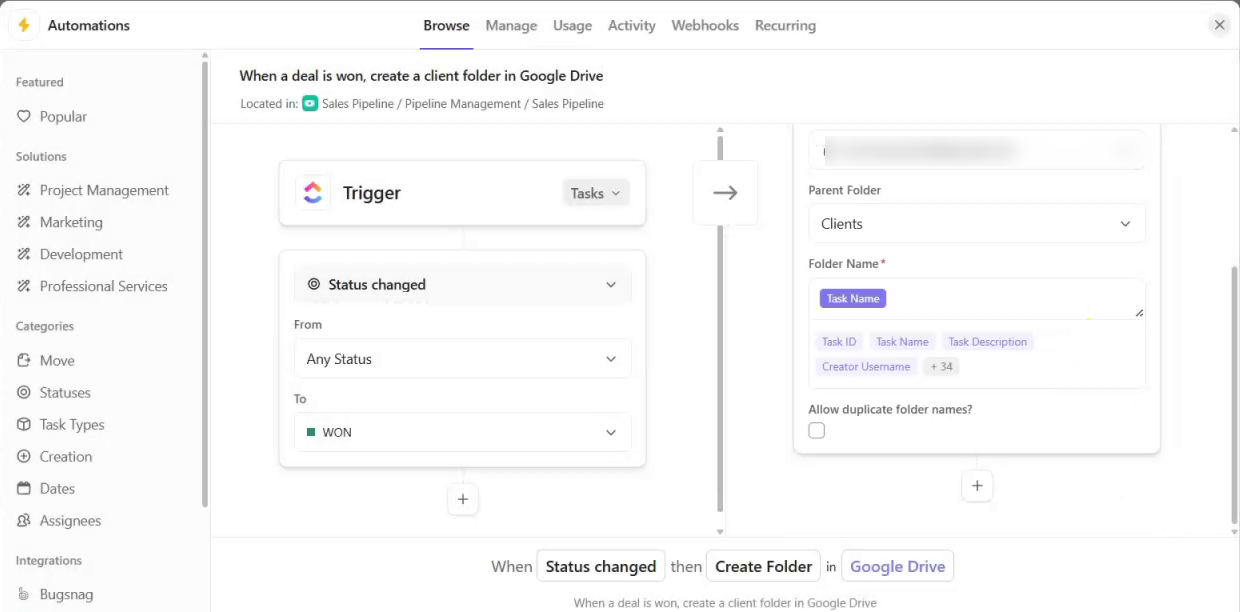
The test should cover the whole path, not just the automation settings. A trigger can be configured correctly while the folder still ends up under the wrong parent or carries an unhelpful name.
Create a Google Doc from a form submission
- Prepare the intake form. Use an existing lead form or create one with the fields you need in the document. The example in the script collects a name, company and description of what the person needs.
- Choose the form event. Set the trigger to the form submission, or to the task created from that submission, depending on the event available in your setup. The key is that the automation starts from the form response arriving in ClickUp.
- Choose the document action. Set the action to create a Google Doc. Map the form answers into the document content so the name, company and request appear where your team expects to read them. Do not rely on someone to copy the answers over after the automation runs.
- Submit a test response. Use clearly recognisable sample answers. Confirm that the form submission creates the expected ClickUp task and that the Google Doc contains the matching values. Check each mapped field, not only the document title, before using the form with prospects.
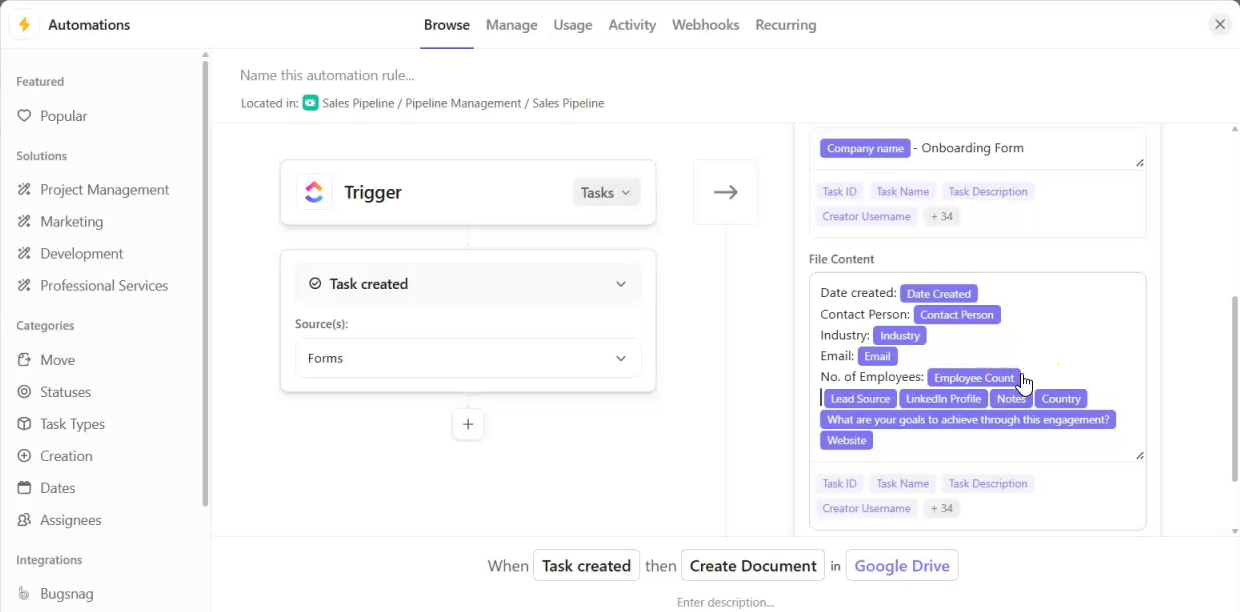
Keep the document focused on information the team will use. If a form asks for details that do not help someone respond to the lead, putting every answer into the document will make the handoff harder to scan rather than easier to act on.
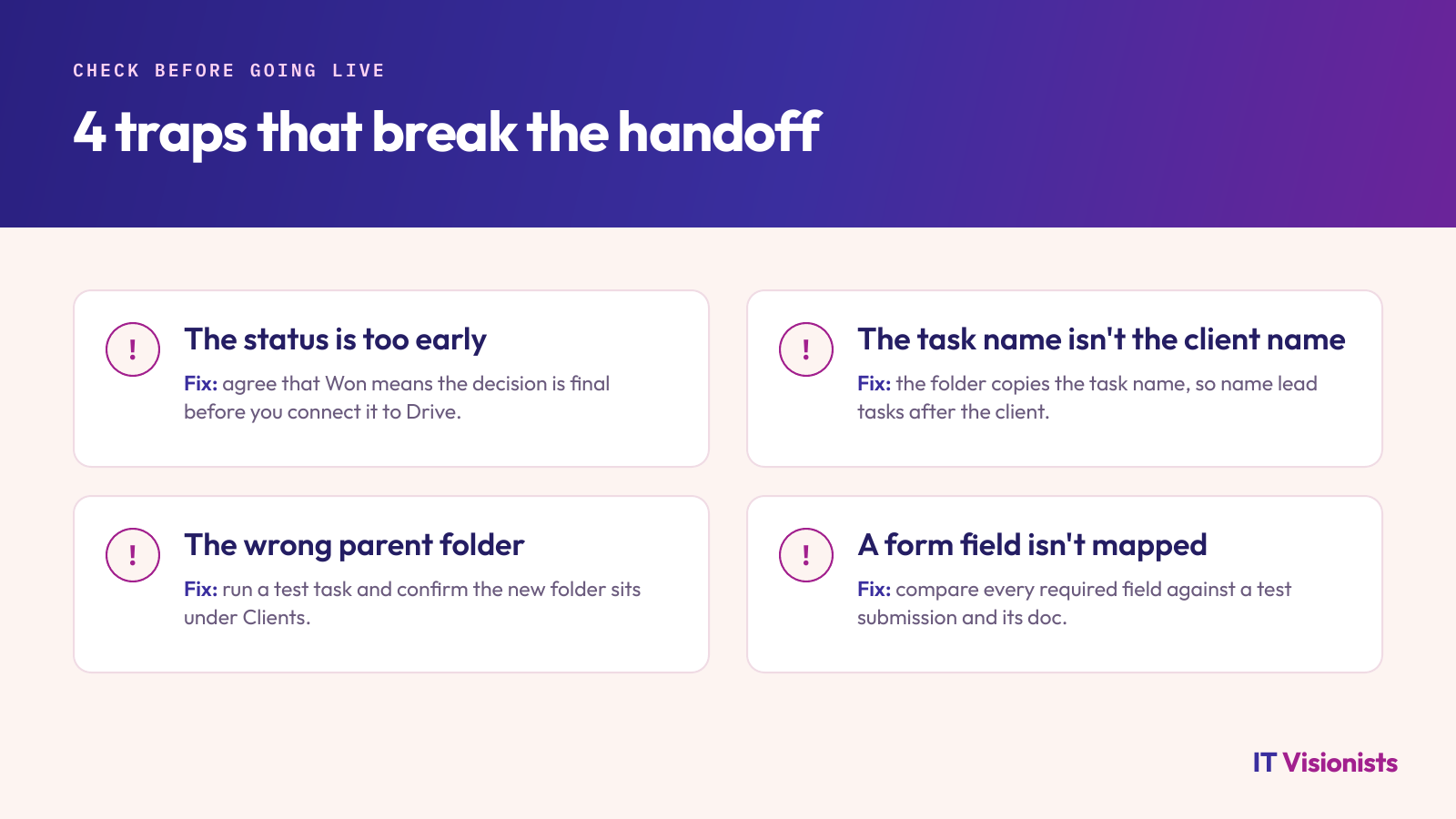
Common traps in Google Drive automation
- The status is too early. If the team changes a lead to Won before the decision is final, the folder will be created at that point. Agree what the status means before connecting it to a Drive action.
- The task name is not the client name. The folder name follows the task name in this setup. Keep the name usable for the client folder, or change the task naming practice before mapping it.
- The wrong parent folder is selected. A folder can be created successfully and still be difficult to find if it is not under Clients. Verify the location with the test task.
- A form field is collected but not mapped. The form may contain the answer while the Google Doc does not. Compare every required field against a test submission and its resulting document.
What to verify before relying on it
As of October 2026, the source script describes these two trigger-and-action patterns but does not specify how duplicate submissions, repeated status changes, document edits, access failures or more complex branching are handled. Treat those as unanswered questions, not as behaviour to assume.
If your normal process can submit the form more than once or move a lead through Won more than once, test that path with sample data in ClickUp. Submit a second test response or repeat the status change, then inspect Google Drive for the resulting folder or document. Decide what should happen in those cases before turning the workflow loose on live enquiries. The test confirms what your setup does; it does not establish a rule that applies to every workspace.
The two automations also do different jobs. The form-to-document handoff does not replace the decision about whether a lead is won, and the folder handoff does not make sure the intake answers are present in the document. Keep each trigger tied to the point in the process it is meant to represent.
If you want to find other manual handoffs worth reviewing, let’s talk: book a free call